
How to Make a Hotel Lobby AI Video from Photos
Make a Hotel Lobby AI video on VisFlip from character photos, or DIY with first-frame image-to-video prompts for the orange-studio duo mic look.
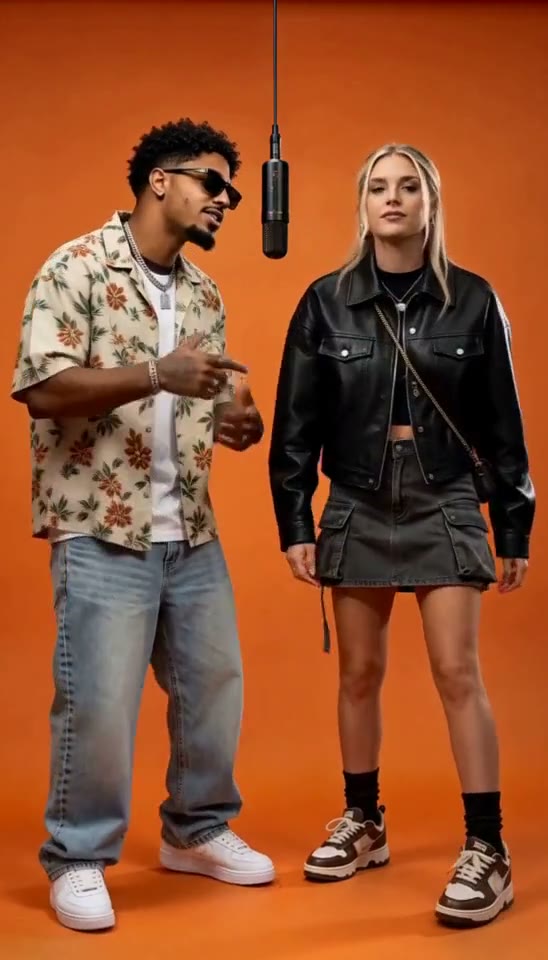
To make a Hotel Lobby AI video on VisFlip, you need character photos, a scene and a style. Start with the orange studio if you want the familiar two-performer, hanging-microphone setup.
This guide covers the VisFlip workflow first, then a separate approach for creators who want to use their own first frame and audio in another tool.
Choose a Hotel Lobby AI video workflow
Use Hotel Lobby AI when you want to start from photos and choose from the available scenes and styles. If you already have a finished first frame or need a specific vocal recording, use an external tool that supports those inputs. The long prompts in our prompt guide are for that second approach.
Make the video on VisFlip
1. Upload your character photos
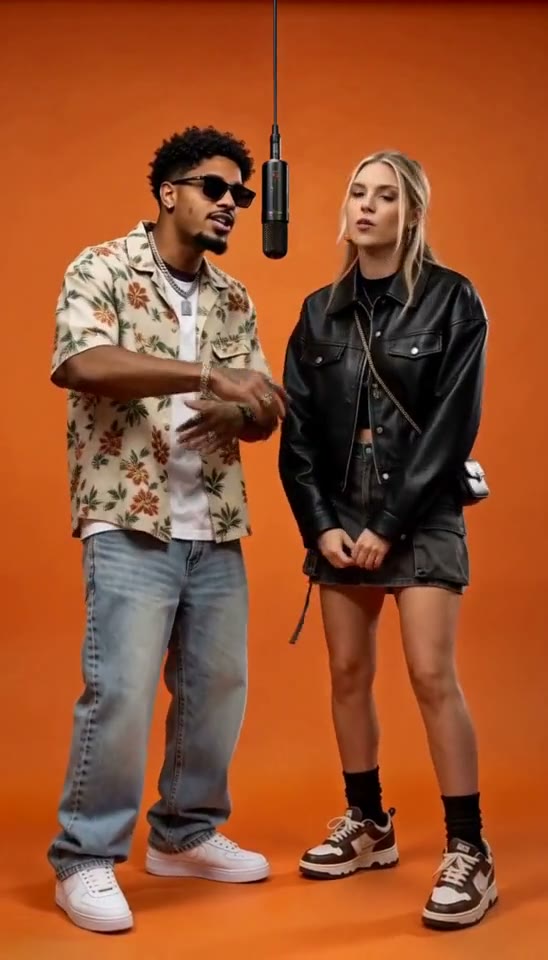
Open Hotel Lobby AI and sign in. Upload one image containing both characters or two separate character images in JPG, PNG or WebP format. You can use people, animals or other character designs.
2. Choose the scene and video settings
Select Orange studio · Hotel Lobby for the hanging-mic setup. Luxury lobby, Street cypher and Studio booth offer other settings.
Choose Live-action photography or Hotel Lobby moves · 3D clay. Live-action photography offers different scenes and lengths; 3D clay uses Orange studio · Hotel Lobby with a 10-second video.
Choose Seedance 2.0, MiniMax H3 or Seedance 2.5, then check the available length, resolution and format.
3. Add a video theme
Describe the occasion in a short phrase, such as “A birthday greeting for a friend” or “Thank a teammate for helping finish a project.”
4. Review the quote and generate
Video generation is billed in credits, with the amount shown in the quote for your settings. Those credits can be used across VisFlip’s features. Confirm the settings and quote, generate, then preview and download the finished video.
Before you try again
- Upload rejected: Check that the image is a JPG, PNG or WebP within the size limit shown in the form. Use images you have the right to use and that comply with the Terms of Service and AI Content Policy. Wait for uploads to finish before generating.
- Insufficient credits: Compare the current quote with your available credit balance, check the model and length, and top up if needed.
Work from your own first frame
In an external image-to-video tool, start with a frame showing both characters, the orange backdrop and the hanging microphone. For an image-only input, describe the pair’s actions. With a reference video, describe the movement to follow. With audio, assign the lead vocal to the left character and the backing responses to the right.
Preview the mouths, hands and interaction between the pair. Add a separate track in an editor if you want to change the audio. The prompt guide has copyable examples for each input.
Build longer videos in sections
Use the lengths available in your chosen tool. For a longer video, generate separate sections and join them in an editor.
For a continuation in the same shot, use the previous clip’s last frame as the next starting image. Check the join for changes in faces, hands and microphone position.