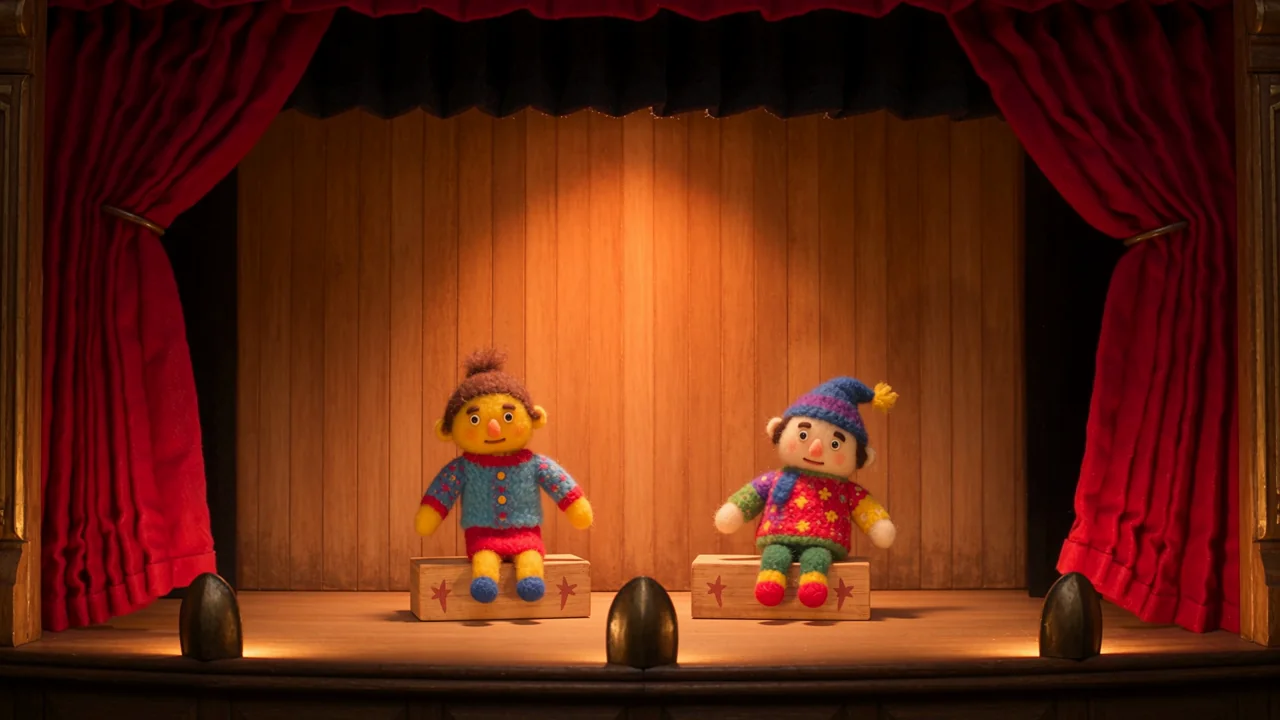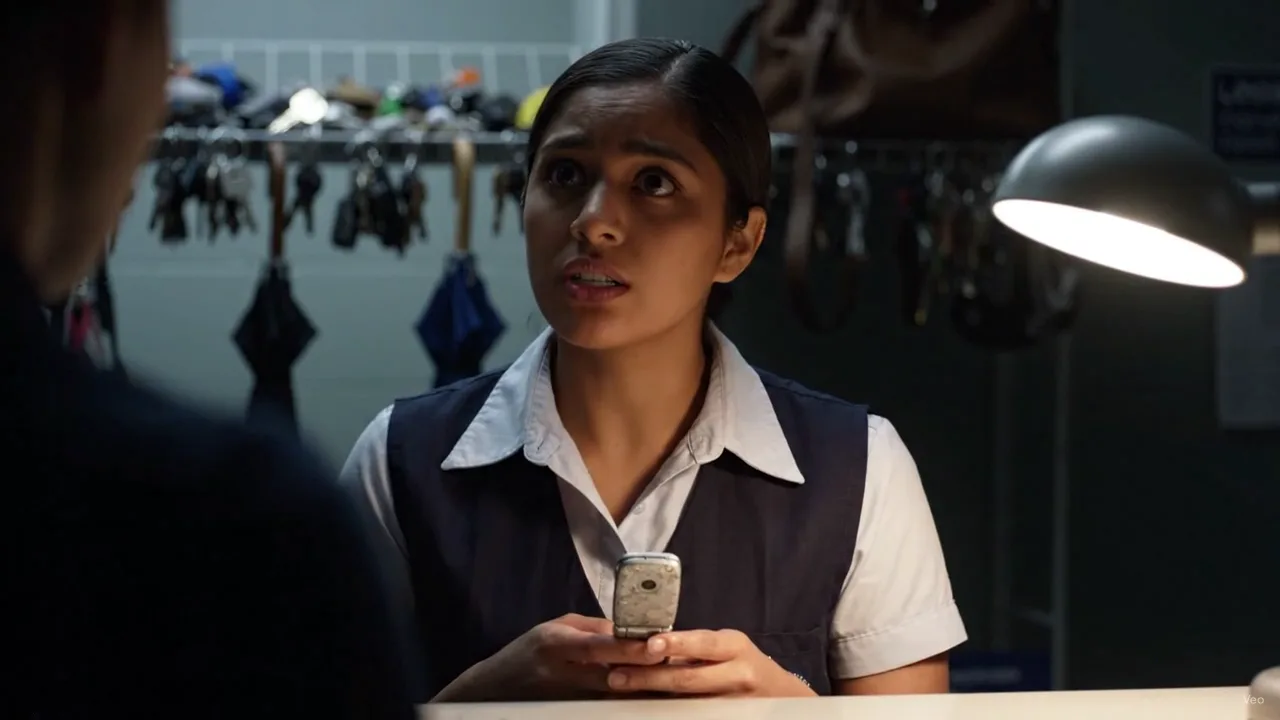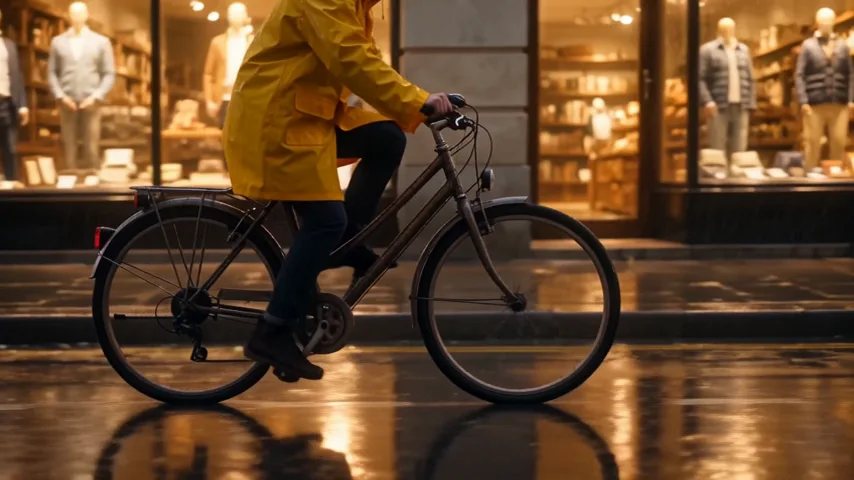
Kling 4.0 Prompts: Scenes, Products and Dialogue
Write Kling 4.0 prompts with timed actions, clear reference roles and keyframes; Kling 4.0 Flash works the same way, plus one five-second dialogue clip.
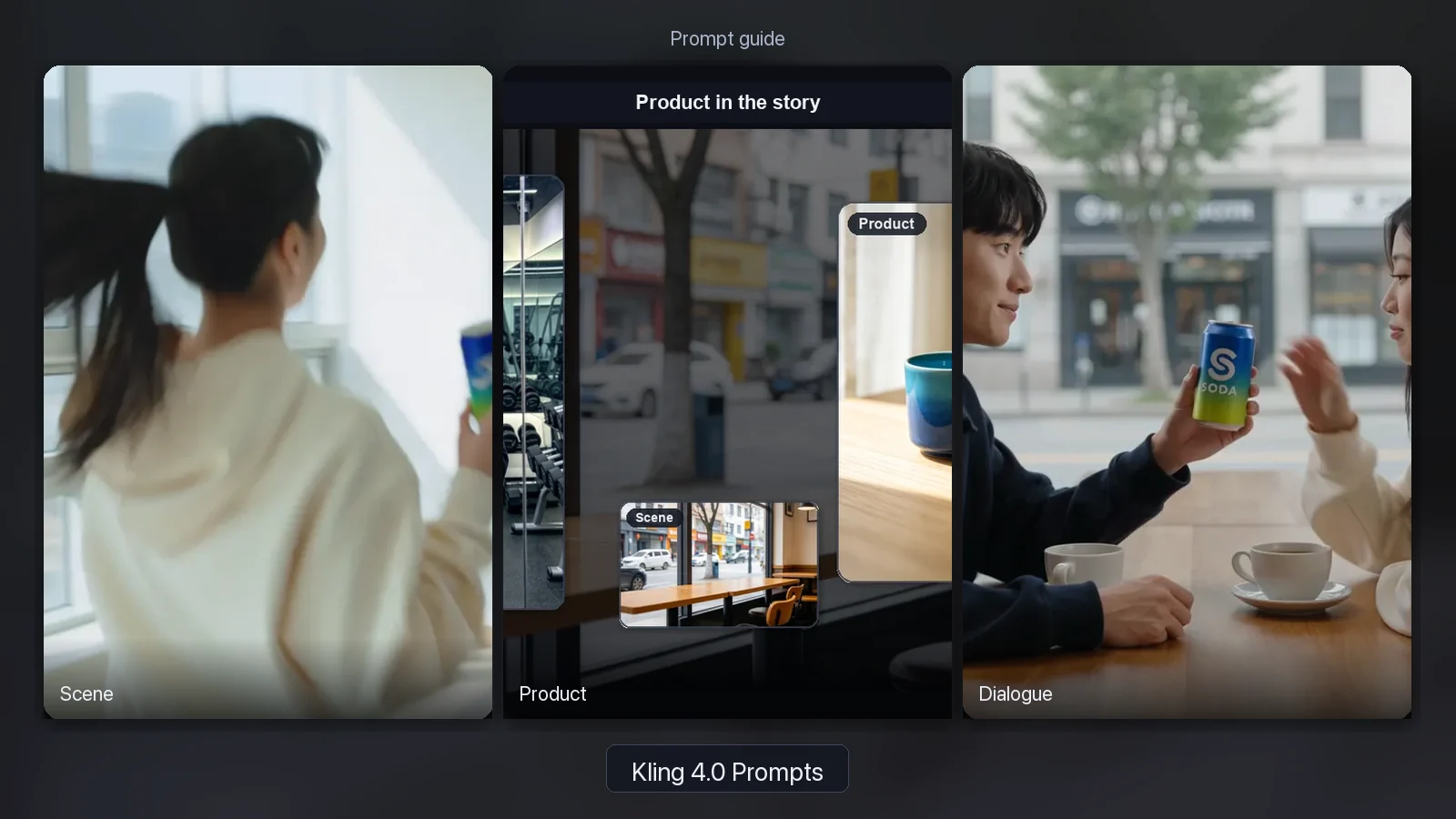
A useful Kling 4.0 prompt explains more than the look of the first frame. It tells the model who or what is in the scene, what happens over time, how the camera responds, and which references or keyframes should anchor the result.
The four Kling 4.0 briefs below are yours to adapt. The shortest one, a dialogue scene, ran in Kling 4.0 Flash; its prompt and result sit side by side, so you can see which requests held up and which did not. One keyframe example further down also comes with its real clip; the rest give you the brief alone, ready for your own subject and setting.
Build a Kling 4.0 prompt around what happens
Start with these parts, in an order that is easy to scan:
- Shot and camera: a handheld tracking shot, a fixed medium shot, a slow arc or another clear choice.
- Subject and setting: who or what appears, and where the scene happens.
- Timed action: the opening, middle change and ending, with approximate time ranges for a longer clip.
- Light and texture: describe visible choices such as side backlight, soft window light or a matte surface instead of relying on “premium.”
- Sound and dialogue: name the speaker, exact lines, ambience and music only when the scene needs them.
- Duration and aspect ratio: state the intended output, such as 15 seconds at 9:16.
Kling 4.0 has room for a detailed brief, but length alone does not improve control. Settle the main action and turning points first, then add the remaining detail. One main action and one camera direction per time range lands more reliably than several competing events packed into one sentence.
Give each reference a job
When you upload several assets, say what the model should take from each one. Upload order matters when you refer to assets by number.
The examples below use the official Kling reference labels @Image1 and @Video1. In the VisFlip generator, replace them with @image_1 and @video_1 using the order of your uploaded assets.
@Image1 defines the person's appearance, including facial features, hair and clothing.@Image2 defines the location and background light.@Video1 is only a reference for camera movement and pacing, not for its subjects or setting.
This separation is especially useful when a background keeps changing or a reference video contributes details you did not want. Make the image references and written directions agree rather than asking for a location that contradicts the supplied scene.
Prompt for a 30-second continuous scene
Use time ranges when the scene needs enough space for an action, a transition and a closing moment. The camera has one continuous job: follow the vendor through her morning routine.
Each time range holds one main event. The ending also needs a camera move: the final pull-back settles the frame, so the action does not simply stop.
Prompt for a product ad with separate references
Prepare a clear product image, a person image and, when useful, a camera-reference clip. Keep the product identity instruction beside the reference assignment so it does not get lost among the scene details.
If the clip does not need readable text, drop the line asking for it and end on a product pose instead. Check the case shape, logo, color and earbud proportions in the result, not just the overall mood.
Prompt for dialogue, reaction and lip sync
Identify each speaker by position and write the exact lines. Include the reaction between lines if it matters to the scene. A fixed camera makes changes in expression and mouth movement easier to review.
Do not ask both people to speak at once unless that overlap is intentional. Leave enough duration for the question, a natural pause and the answer.
For a shorter single-speaker scene, describe one action before the line and keep the camera direction simple. This five-second Kling 4.0 Flash text-to-video example uses that structure.
Give the reaction a beat before the line, and ask for only the sounds that matter to the scene.
Prompt for a story told through multiple keyframes
Prepare the keyframes in story order before writing the prompt. Each image should make the desired state visually clear; the prompt then explains the transitions and style that connect them.
For this example, upload four frames:
- A girl stands under an umbrella at a bus stop in the rain.
- A wet puppy moves under her umbrella.
- She crouches and dries the puppy with a cloth.
- The rain stops, and she walks away with the puppy beneath a rainbow.
The keyframes define the important visual states. The prompt does not need to redescribe every object in them; it needs to explain order, movement, continuity and sound.
Two keyframes are enough. This one is ours: an ornate clock on a dark stone pedestal and a pile of fine sand on the same pedestal, joined into five seconds by Kling 4.0. The prompt below is the one we used, unchanged.
The frames fix the two ends; the transformation between them is yours to write. Two things did the work here: how it changes, and what must not show up.
Revise one specific problem at a time
Watch the result beside the exact prompt and references that produced it. Change the instruction connected to the problem instead of adding a new paragraph of general style words.
| What went wrong | What to change next |
|---|---|
| The background replaced the intended location | Strengthen the environment reference and remove contradictory setting descriptions. |
| Too many actions happened at once | Split the time range into two beats and keep one main action in each. |
| The product changed shape or color | Assign a dedicated product reference and name the details that must remain fixed. |
| The dialogue felt rushed | Reduce the number of lines or allow more time for pauses and reactions. |
| Image flicker, warped faces or extra fingers appeared | Add a specific constraint such as avoiding face deformation, extra fingers, image flicker or product warping, and review whether the input images are clear. |
Keep the other inputs stable for the next attempt. That makes it easier to see whether the new reference assignment, time range or camera instruction actually helped.
For another prompt workflow, read the Seedance 2.5 prompt guide.