VisFlipVisFlip

Veo 3.1 AI video generator for short scenes

Create product, story or travel clips in 4, 6 or 8 seconds, up to 1080p. Start from text or one opening image, with generated sound included.

CostThis option is not available yet.

Try a Veo 3.1 prompt

Pick a prompt to try your own version of a scene.

Four ways to shape a short Veo scene

Choose a bakery Reel, a short-drama teaser, a travel promo or a story establishing shot, then check the camera and action that matter.

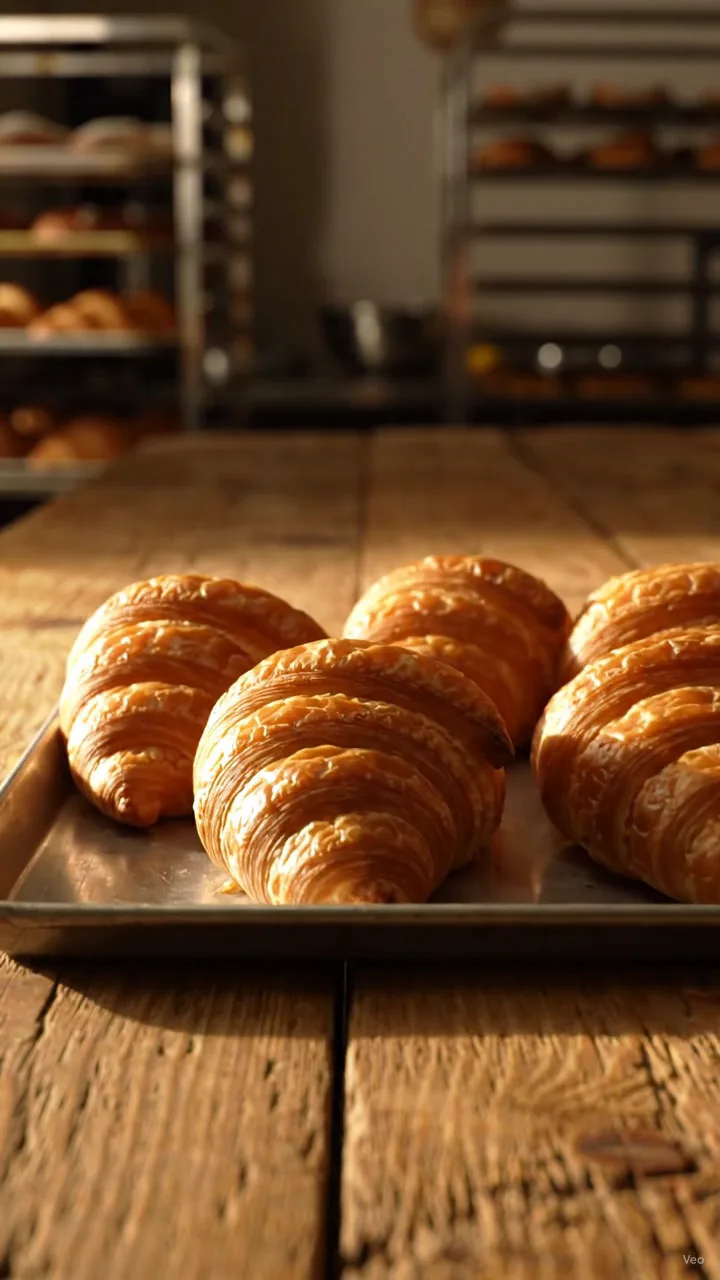
Sell a fresh bakery batch in a Reel

Sell a fresh bakery batch in a Reel

For bakeries promoting today’s croissants, use a vertical close shot of the tray sliding onto the counter. Check that the pastries stay in frame as it settles.

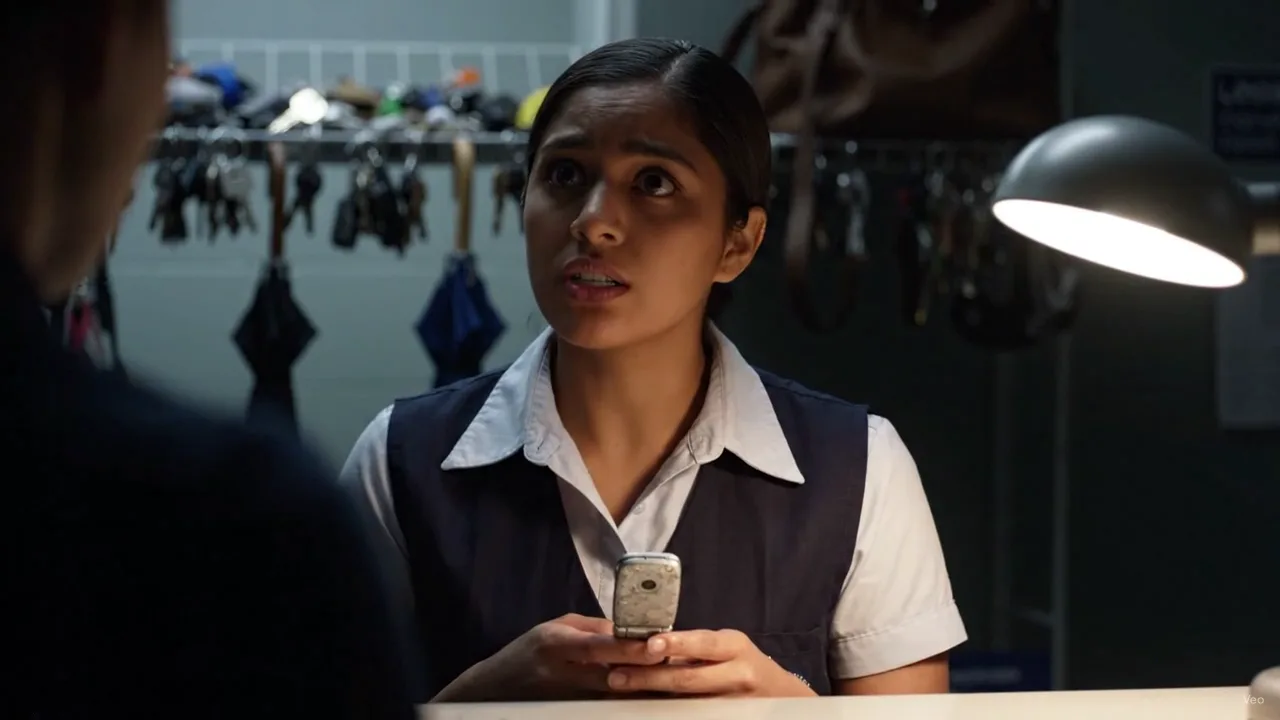
Tease a short drama with one question

For a lost-and-found scene, frame the clerk horizontally at the counter and direct “Is this yours?” toward someone off camera. Check the line and pause read clearly.

Tease a short drama with one question
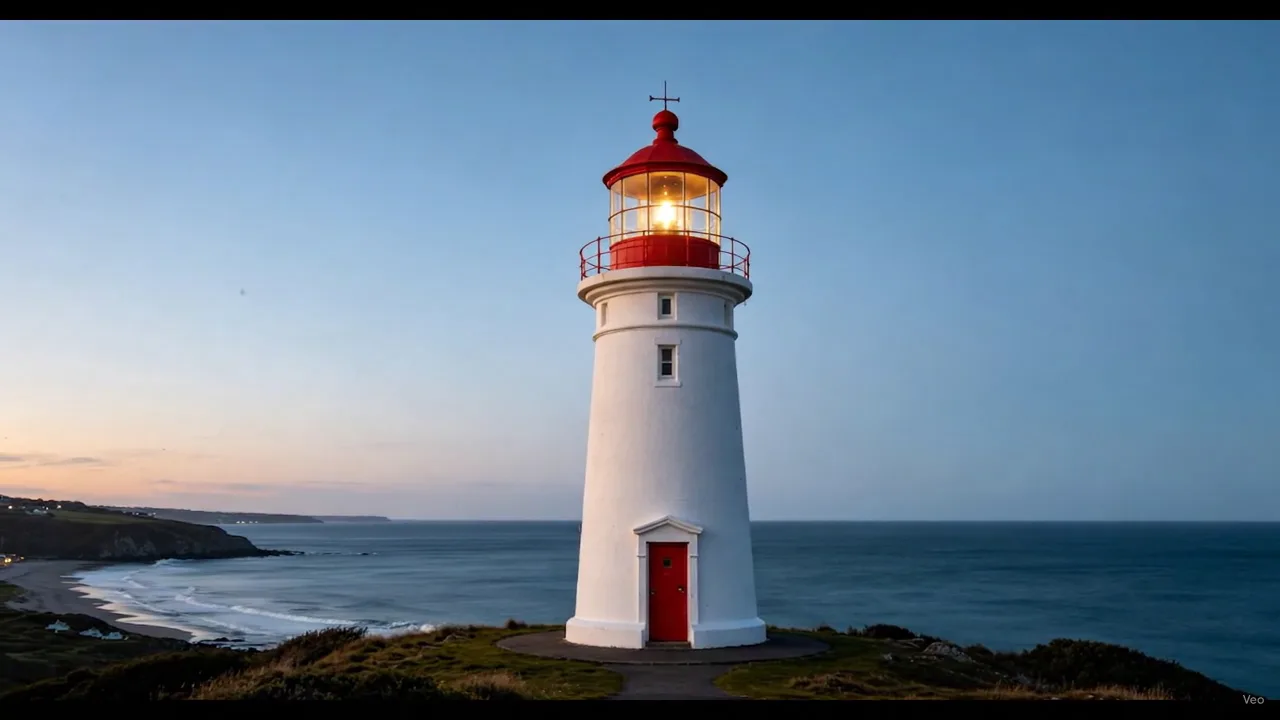
Promote a coastal destination from a still

Promote a coastal destination from a still

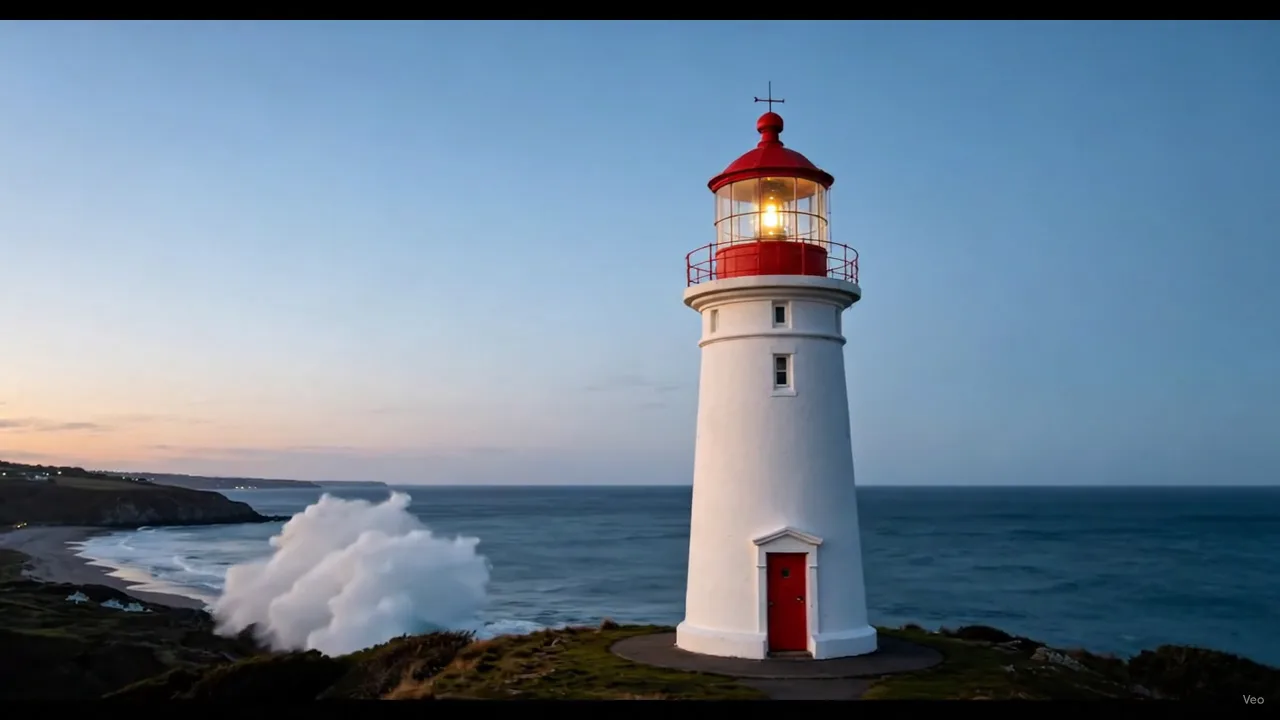
Start from the supplied lighthouse image and request a gentle push-in as a wave breaks on the left. Check that the building remains recognizable as the shore moves.

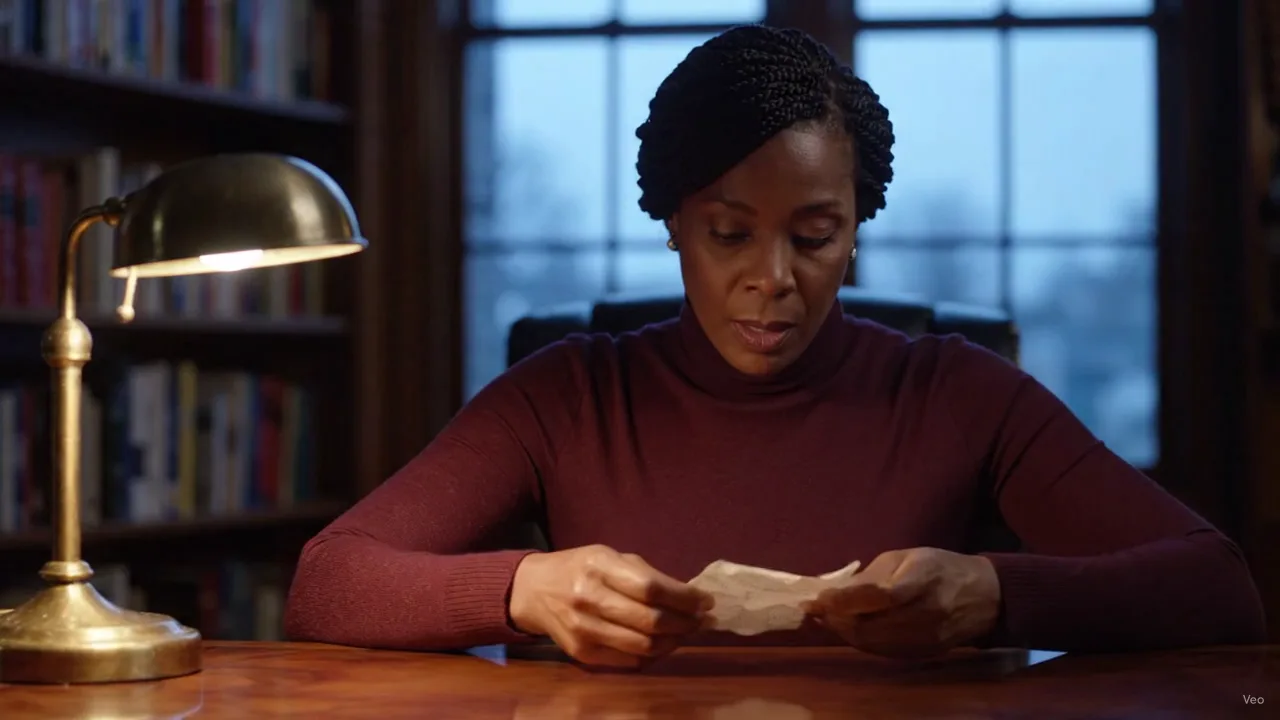
Set a narrative scene with a held view

For a storyboard establishing plate, use the same lighthouse still with a locked-off camera instruction. Check that the tower holds its size more steadily, while allowing for slight drift.

Set a narrative scene with a held view

Create product, dialogue and food videos with Veo 3.1

See how Veo 3.1 handles vertical product turns, quiet indoor dialogue and synchronized cooking audio in standalone 4–8 second shots.

Spin a product shot for mobile ads

For e-commerce launches and vertical ad tests, place blue headphones on a clean turning plinth. Keep the silhouette crisp and centered so the product stays readable on a phone screen.

When to choose Veo 3.1, Seedance, Kling or Wan

Choose from the controls exposed in the VisFlip generator. Veo suits a short text- or image-led shot with generated sound; the other rows show when extra references or a longer sequence matter.

ModelBest fitDurationResolution
Veo 3.1
Choose Veo for a 4–8 second shot where generated sound belongs with the visible action. Start from text or one opening image.4 · 6 · 8s720p · 1080p
Seedance 2.5
Use Seedance 2.5 for a product reveal when reference images establish the product and a reference video shows the movement.4–30s480p · 720p · 1080p
Kling 4.0
Choose Kling 4.0 for up to 30 seconds, up to 10 image references, or control of the first and last frames.3–30s720p · 1080p
Wan 3.0
Choose Wan 3.0 for up to 10 image references, first-and-last-frame guidance, or a 2–30 second sequence.2–30s480p · 720p · 1080p

Plan a short Veo 3.1 scene before you generate

Start with the clip’s purpose and the material you have. Then describe the visible action, camera movement and the sound the scene needs.

01

Choose text or a starting frame

Use text to build a scene from scratch, or upload one image when its opening composition matters. Veo takes a single starting image.

02

Describe the shot in sequence

Name the subject, one action, the camera move and the sound cue. Keep the prompt within the 2,000-byte limit.

03

Set the clip and check the result

Choose 4, 6 or 8 seconds and a format. Review the credit quote, then watch the generated picture and sound together.

Estimate the cost of a Veo 3.1 video

The pack estimate below uses a four-second 720p clip. Veo costs 85 credits per second with generated audio at either resolution. Check the quote for your selected duration before continuing.

Light pack

Try a few ideas and find your direction

$20One-time payment

Get 1,250 credits

About 3 Veo 3.1 videos (from $5.44 each)

Up to 78 videos

Works with Seedance 2.5 · Seedance 2.0 · Seedance 2.0 Fast · Seedance 2.0 Mini · Kling 3.0 · Kling 4.0 · Kling 4.0 Flash · Veo 3.1 · Wan 3.0 · MAGI 2.0

Watermark-free downloads
Commercial license

Creator pack

Recommended

Explore more ideas and refine your favorites

$60One-time payment

Get 3,750 credits + 450 bonus credits

About 12 Veo 3.1 videos (from about $4.86 each)

Up to 262 videos

Works with Seedance 2.5 · Seedance 2.0 · Seedance 2.0 Fast · Seedance 2.0 Mini · Kling 3.0 · Kling 4.0 · Kling 4.0 Flash · Veo 3.1 · Wan 3.0 · MAGI 2.0

Watermark-free downloads
Commercial license

Large pack

Keep credits ready for regular video creation

$200One-time payment

Get 12,500 credits + 3,750 bonus credits

About 47 Veo 3.1 videos (from about $4.18 each)

Up to 1,015 videos

Works with Seedance 2.5 · Seedance 2.0 · Seedance 2.0 Fast · Seedance 2.0 Mini · Kling 3.0 · Kling 4.0 · Kling 4.0 Flash · Veo 3.1 · Wan 3.0 · MAGI 2.0

Watermark-free downloads
Commercial license

Studio pack

For a full slate of video projects

$600One-time payment

Get 37,500 credits + 15,000 bonus credits

About 154 Veo 3.1 videos (from about $3.89 each)

Up to 3,281 videos

Works with Seedance 2.5 · Seedance 2.0 · Seedance 2.0 Fast · Seedance 2.0 Mini · Kling 3.0 · Kling 4.0 · Kling 4.0 Flash · Veo 3.1 · Wan 3.0 · MAGI 2.0

Watermark-free downloads
Commercial license

01

Both resolutions cost the same per second

Veo costs 85 credits per second at 720p or 1080p, with generated audio included. Choose the resolution for the file you need.

02

Budget by clip duration

At 85 credits per second, 4 seconds costs 340 credits, 6 seconds costs 510 and 8 seconds costs 680. Confirm the current quote in the generator.

03

Audio is included with each video

Veo 3.1 has no separate audio switch on VisFlip. Describe only the dialogue and ambience you want, then review the audio with the video.

Veo 3.1 inputs, video and credits

Veo 3.1 prompt guide and related model guides

Start with the Veo 3.1 guide to compare two camera moves from the same lighthouse photo. The other guides cover frame direction and reference images.

A lost-and-found clerk looks up at a visitor across the counter.

Veo 3.1 Prompt Guide: Structure, Audio & Examples

Learn how to write Veo 3.1 prompts for 4–8 second videos with audio. Covers the 5-part formula, JSON & start-frame patterns, 7 clip examples, and pitfalls.

Nov 22, 2026VisFlip
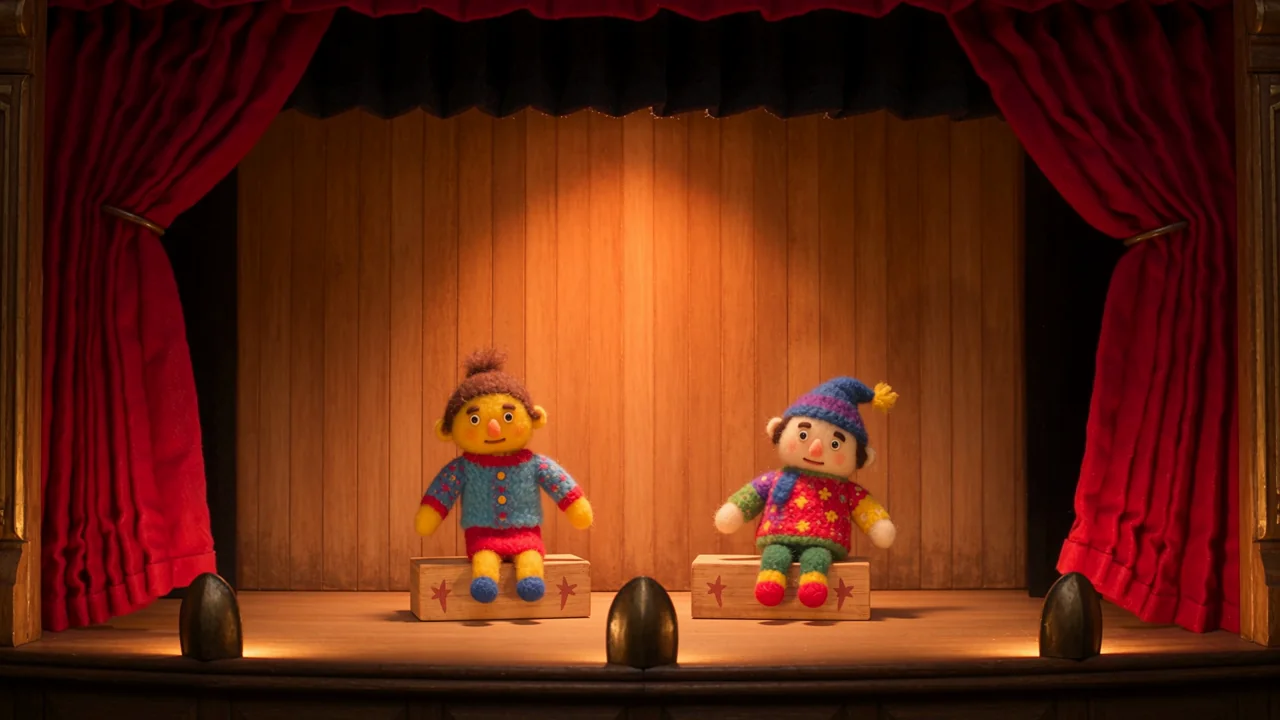
Two felt puppets on a wooden stage framed by red curtains.

MAGI 2.0 Prompt Guide for Motion, Frames and Sound

Plan MAGI 2.0 video prompts for text, first-and-last-frame, and reference workflows. Copy editable English examples for motion, continuity, and sound.

Nov 26, 2026VisFlip
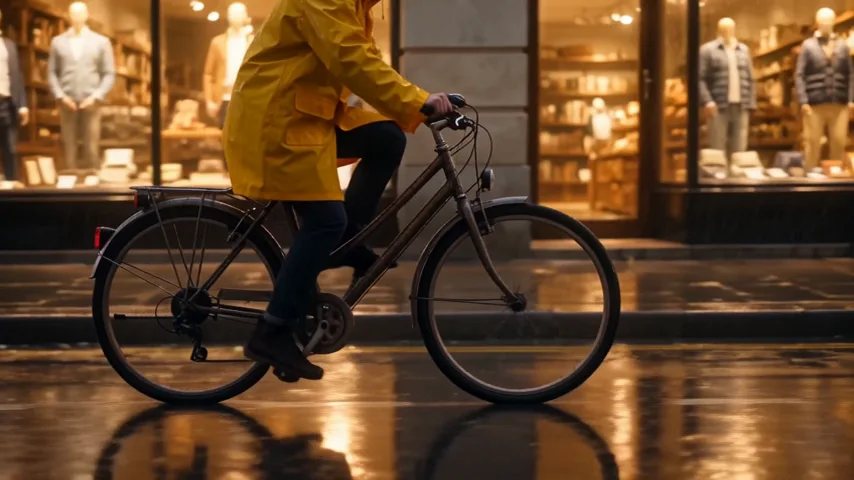
A cyclist in a yellow raincoat passes a lit shop at night.

Wan 3.0 Prompts: Guide and Video Examples

Learn to write Wan 3.0 prompts with three 480p video examples. See the prompts and settings for text-to-video, first-and-last frames, and image references.

Nov 18, 2026VisFlip
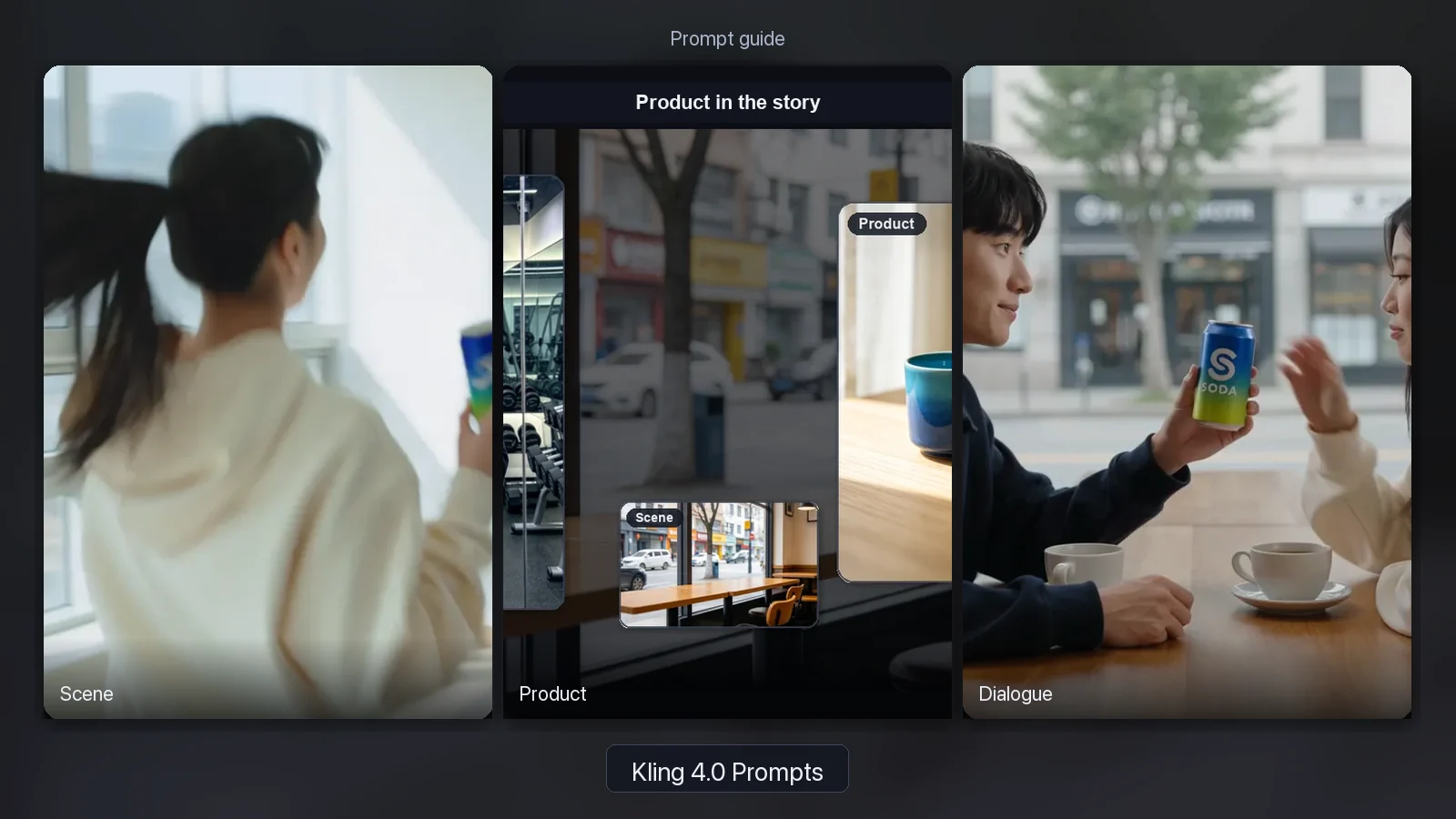
Three panels for a Kling 4.0 prompt guide: scene motion, product in story, and dialogue

Kling 4.0 Prompts: Scenes, Products and Dialogue

Write Kling 4.0 prompts with timed actions, clear reference roles and keyframes; Kling 4.0 Flash works the same way, plus one five-second dialogue clip.

Oct 26, 2026VisFlip
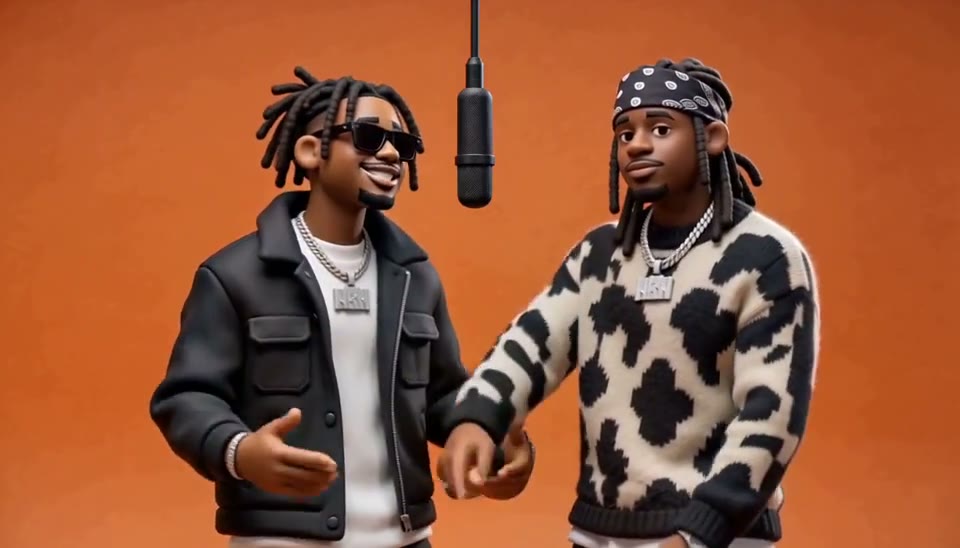
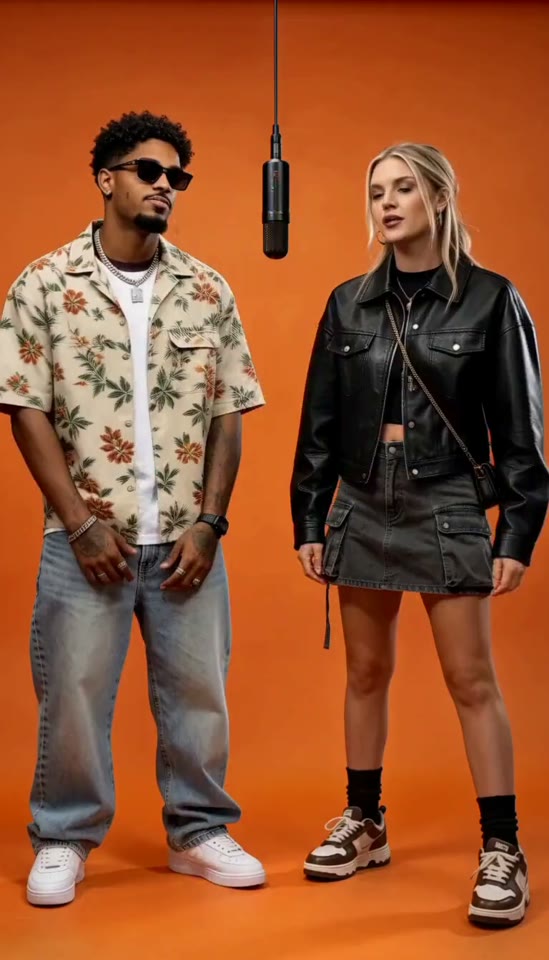
Two clay-style characters performing beside a hanging microphone against a vibrant orange studio backdrop

What Is Hotel Lobby AI Video? Orange Duo Rap

Hotel Lobby AI video pairs two performers with an orange backdrop and a hanging mic. Explore the look and make your own version from character photos.

Oct 15, 2026VisFlip
Two human characters standing beneath a studio microphone against an orange backdrop

How to Make a Hotel Lobby AI Video from Photos

Make a Hotel Lobby AI video on VisFlip from character photos, or DIY with first-frame image-to-video prompts for the orange-studio duo mic look.

Oct 15, 2026VisFlip
A dog in streetwear and a cat posing beside a suspended microphone in an orange studio

Hotel Lobby AI Video Prompts: First Frame Duo Rap

Copy Hotel Lobby AI video prompts for orange-studio duo mic scenes: first-frame only, first-frame plus reference, and first-frame plus audio.

Oct 15, 2026VisFlip
A blue ceramic cup starting image alongside subject and empty-table references

Seedance 2.5 Prompts: Guide and Examples

Write Seedance 2.5 prompts that describe the shot you have in mind. Work through examples of action, camera movement, reference images, pacing, and sound.

Sep 20, 2026VisFlip

Create a Veo 3.1 video for your next idea

Start from a prompt or one opening image, describe the scene and its sound, then check the credit quote before creating.