MAGI 2.0 Prompt Guide for Motion, Frames and Sound
Plan MAGI 2.0 video prompts for text, first-and-last-frame, and reference workflows. Copy editable English examples for motion, continuity, and sound.
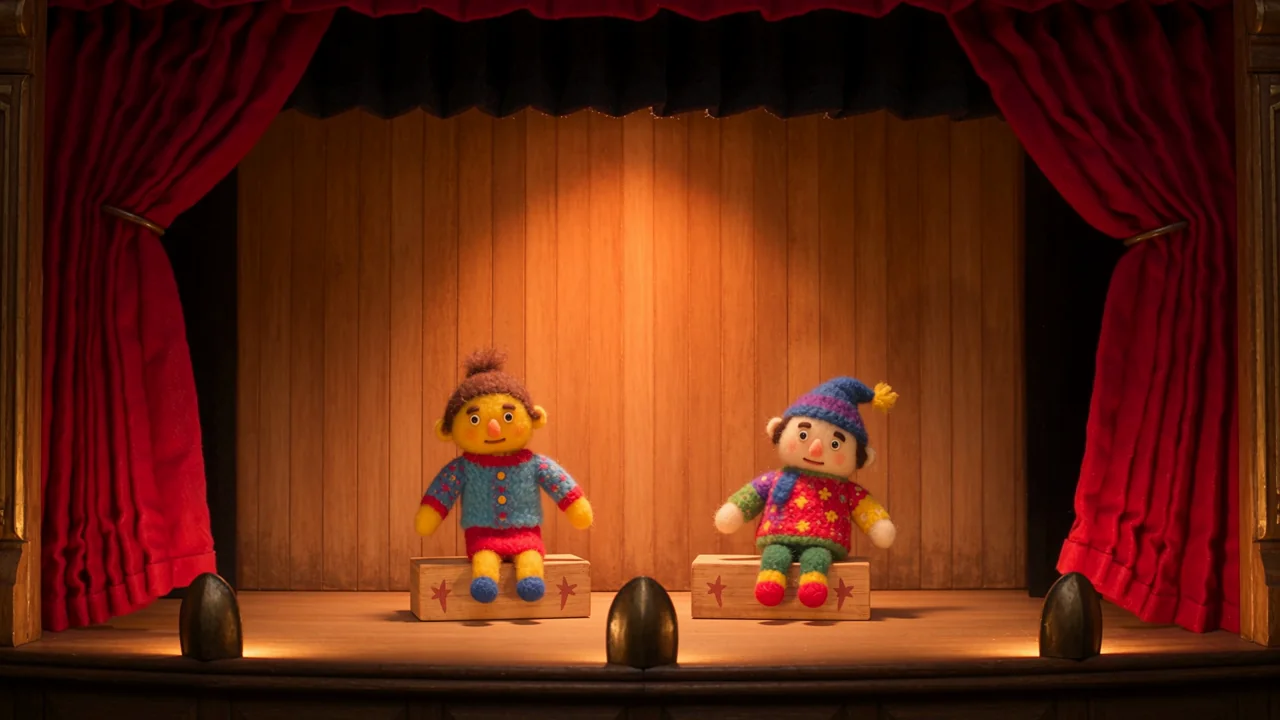
MAGI 2.0 supports text-to-video, first-and-last-frame generation, and reference generation with images, videos, and audio. Each workflow benefits from a different kind of brief: a scene description, a transition between two known states, or a clear map of what each reference should contribute. Watch the dance-class and puppet-theatre clips alongside the English prompts that produced them.
A useful starting point is to decide what the viewer should notice first, what changes during the clip, and what should remain consistent. Then assign the camera and sound only as much work as the idea needs. MAGI 2.0 can produce 1080p video with native sound, but a detailed prompt still works best when its instructions point in the same direction.
A practical MAGI 2.0 prompt structure
Write the prompt as a short production brief. You can use this sequence:
- Format and shot: name the orientation, framing, and whether the camera stays still or moves.
- Subject and setting: describe the main subject and the location that matters to the scene.
- Action in order: use one main action, or divide a longer clip into a few time-based beats.
- Continuity: name the details that must remain stable, such as a face, outfit, prop, product color, or stage layout.
- Sound: say what should be heard, when it happens, and whether speech, music, or ambient sound belongs.
- Limits: add only useful exclusions, such as no extra people, no cuts, or no on-screen text.
For a short clip, avoid giving the subject several unrelated jobs. A five-second video has room for a visible beginning, one clear change, and a settled ending. A longer 15- or 30-second clip can hold more beats, but write their order explicitly so the viewer can follow the scene. If an action has a precise rhythm, use simple timing such as “0–2 seconds” and “2–5 seconds” instead of a string of adjectives.
Two everyday production habits help make this brief concrete. A shot list describes what the audience sees in sequence; a sound cue list connects each sound to a visible event or a quiet stretch. You can borrow both ideas without writing a technical screenplay. For example, “the bell rings, then the curtain rises” gives sound and image a clear order, while “cinematic, magical, dramatic” does not say what happens.
The MAGI 2.0 official launch article describes a pretraining demonstration built from character and scene references plus three story beats, with framing and cut points left open. The same article says this implicit story-planning behavior became harder to elicit after post-training, so treat it as a documented demo rather than a dependable shortcut. For work where the camera or transition matters, state those choices directly. The examples here adapt the model’s broader reference and continuity ideas to the workflows currently exposed on the MAGI 2.0 page.
Give every reference one job
Reference generation is easier to reason about when each uploaded file has a distinct purpose. A portrait can define a person’s appearance, a movement clip can guide an action, and an audio file can guide rhythm or sound character. Say which reference is responsible for which detail, then describe the new scene around those details.
In prompts, identify uploaded media with tags such as @Image1, @Video1, and @Audio1. Keep the reference roles separate:
- Appearance: take the person’s face, clothing, or a product’s shape from the named image.
- Movement: follow the movement in the named video, while stating which parts of its setting or cast should not carry over.
- Sound or pace: use the audio reference for a musical feel, tempo, or sound texture; explain whether its words should be used.
- New scene: describe the location, camera, lighting, and event you want to create.
Do not ask one reference to define everything unless that is really your goal. A movement video may contain a different room, clothing, and camera angle from the scene you want. Saying “use the action only” makes the intended transfer easier to understand. For a long reference list, give each item a single role and use its tag consistently; extra references do not remove the need for a clear prompt.
A dance class from one studio photo
The photo supplies the instructor, outfit and studio. The prompt gives her three beats: step sideways, bring the feet together, then clap. Keep the camera far enough back to see both shoes.
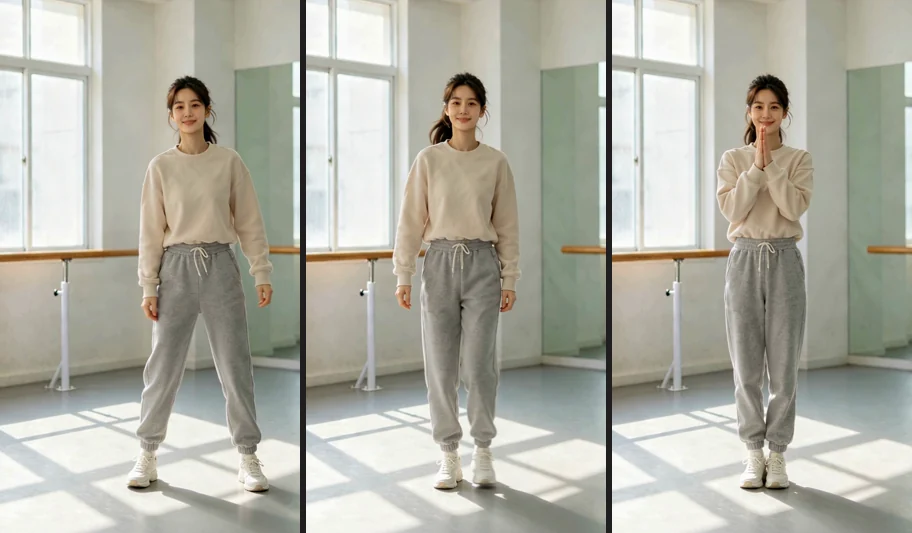
In a dance test, footage of two dancers guided new characters in a retro hair salon. The arm swing and the crouch on the beat were still recognizable. Original link
A pottery detail shot with first and last frames
Use first-and-last-frame mode when you already know how the shot should begin and end. Choose images that share a compatible camera angle and product scale. The prompt can then focus on the change between them rather than repeating details visible in both frames.
For a pottery shop, start with a landscape photo of the entire bowl. Make a second landscape crop centered on a distinctive patch of glaze near the rim. A viewer should be able to find that same patch in the wide shot.
Watch the last second beside the cropped photo. The rim should arrive at the same spot and the pattern should stay on the ceramic surface throughout the move.
Puppet theater: plan picture and sound together
Text-to-video is useful when you want to invent the whole scene from a brief. For a puppet-theater opening, place the sound cue beside the event it introduces. The bell should ring before the curtain begins to rise, then the reveal can settle into a final hold.
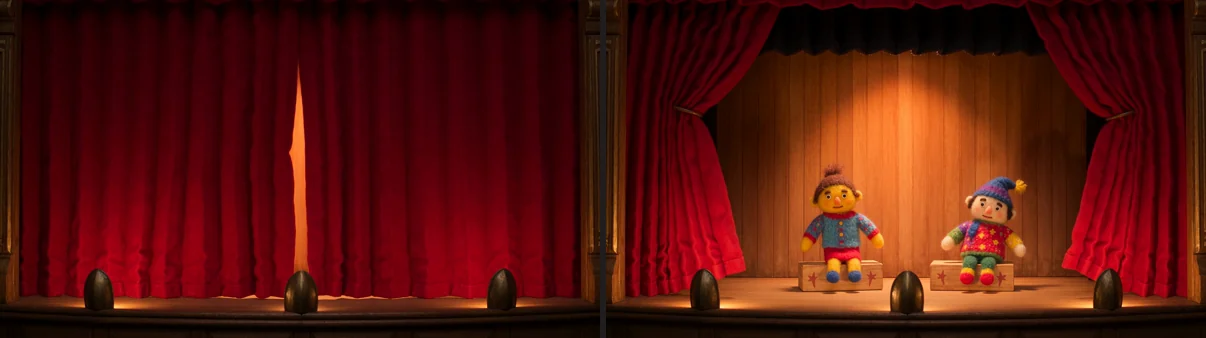
The prompt names a short order of events, a fixed camera, and three sound details. If you want a musical sting instead of room tone, replace the sound sentence rather than adding both. If the clip should include speech, write the exact short line and allow time for the character to say it; do not add dialogue simply because the video has sound.
One reviewer found the speaking voice in a clip noticeably synthetic. Original link Another liked the dubbing in a stylized martial-arts scene. Original link
If your puppet has a line, try it over the bell and listen with your eyes closed. Can you hear the words, and does the delivery suit the character?
Build from one image or one audio reference
Not every reference prompt needs a pile of uploads. One image can establish palette, texture, or composition while the prompt defines motion. One audio clip can guide rhythm or instrumentation while the prompt invents a new scene. This is a practical way to keep the creative brief legible.
For a printmaking-inspired poster reveal, start from an opening image that establishes the artwork and motif you want to animate. Avoid asking the video model to render exact promotional copy; add final typography in an editor where spelling and layout are controllable.
For an audio-led exercise, name what the reference contributes. If @Audio1 is only a rhythm guide, say so and describe a separate visual action. This keeps the prompt from implying that every other part of the recording should appear in the new scene.
Review the clip and revise with purpose
Watch the full result once for the overall idea, then replay the moment tied to your prompt. Check the action order, subject continuity, camera movement, and sound timing. For 15–30 second clips, inspect the middle and ending too; the opening alone cannot tell you whether the rest of the timeline holds together.
Change one kind of instruction at a time:
| What you notice | A focused next edit |
|---|---|
| The movement is hard to read | Reduce the action to one beat and make the camera framing wider or steadier. |
| The subject changes between moments | Re-state the face, clothing, prop, or product details that must remain fixed. |
| The reference setting appears unexpectedly | Clarify which qualities to take from the reference and which not to copy. |
| The video feels rushed | Give the action more of the selected duration or remove a beat. |
| Sound does not match the event | Name the sound source and place it next to the moment when it should happen. |
| The frame contains unwanted detail | Add one concrete limit, such as no extra people or no on-screen text. |
Keep the same images, duration, and aspect ratio while revising a single prompt issue. If you change the references and the wording together, it is harder to tell which change affected the result. These are review habits, not guarantees that a particular artifact will disappear.
In a 30-second dialogue test, an extra person appeared in the final rear view. When your camera cuts away and comes back, pause on the return shot and count who is in frame.
Check the VisFlip settings before generation
On VisFlip, MAGI 2.0 outputs 1080p video, supports durations from 4 to 30 seconds in whole-second increments, and offers six aspect ratios: 16:9, 21:9, 4:3, 1:1, 3:4, and 9:16. The image workflow accepts a first frame and, optionally, a last frame. Reference mode accepts combinations of images, videos, and audio. Choose a ratio that fits the intended placement and check that an opening image is framed for that ratio.
The model team describes a separate upscaling step that takes the base output to 1080p and uses the reference images again. For a poster or product label, pause on a moving frame at delivery size and check the smallest lettering against the original. MAGI-2 technical release
The prompt limit is 8,000 characters. Native audio can be turned on or off; specify dialogue, sound effects, ambience, or music only when you want them. The current estimate is 24 credits per output second, so a five-second clip is 120 credits. Reference files do not add seconds to that estimate.
Use the examples as starting points: replace the subject, setting, action, and sound with details from your own brief, then inspect the editable prompt before generating. At peak times, your video may queue and take longer to finish.