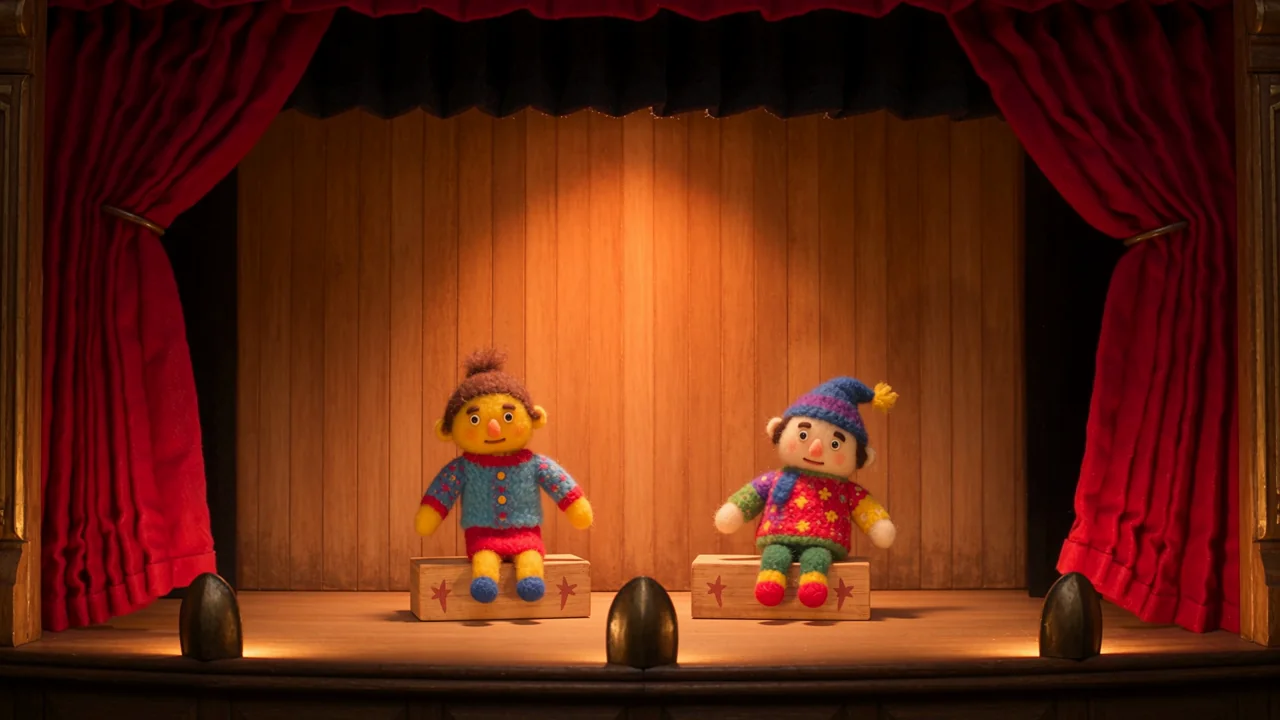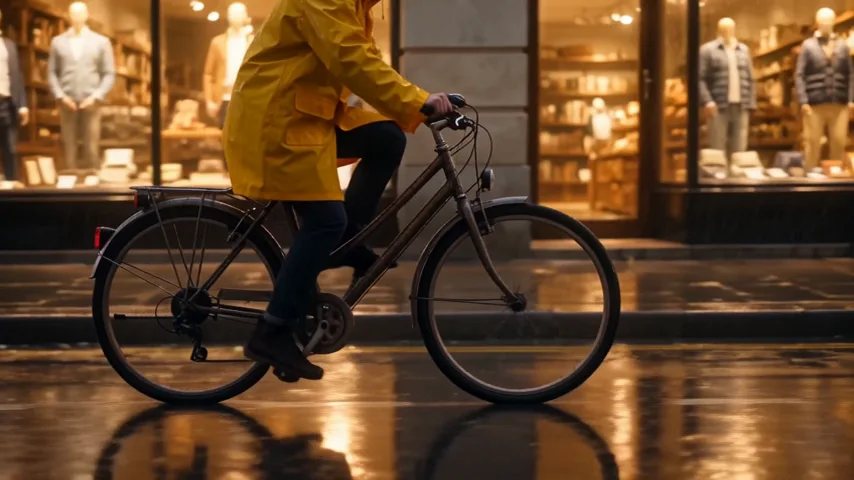
Veo 3.1 Prompt Guide: Structure, Audio & Examples
Learn how to write Veo 3.1 prompts for 4–8 second videos with audio. Covers the 5-part formula, JSON & start-frame patterns, 7 clip examples, and pitfalls.
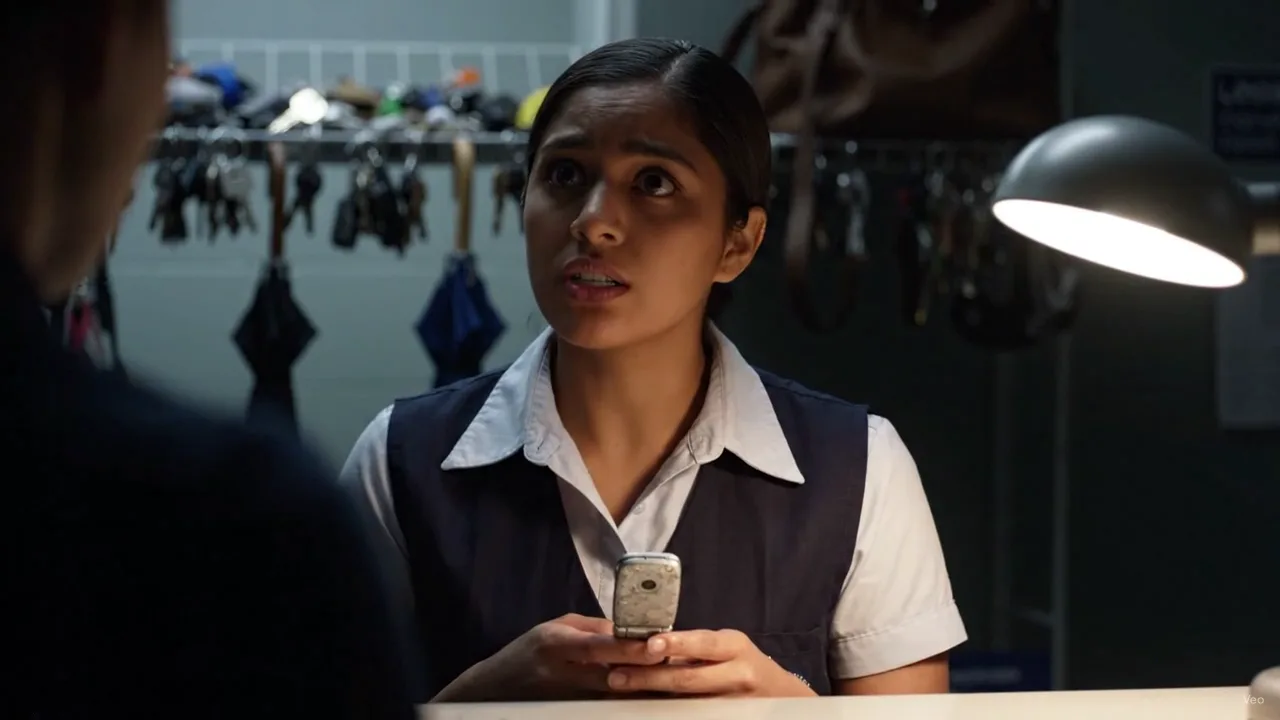
Writing a strong Veo 3.1 prompt is mostly about restraint. On VisFlip, Veo 3.1 generates focused 4, 6 or 8 second clips from text or a single opening image, with native audio always included and a 2,000-byte prompt cap. Trying to pack three scene changes into six seconds usually causes warped motion or muddled audio; giving one clear subject a single visible action and a matching sound source produces far cleaner results.
Below you will find the core prompting structure, two community-tested formatting patterns from X creators, seven showcase Veo 3.1 clips with editable English prompt templates, and the main visual glitches to avoid before you spend credits.
The five-part Veo 3.1 prompt formula
Google Cloud’s official Veo 3.1 prompting guide recommends organizing a shot around five building blocks:
[Cinematography] + [Subject] + [Action] + [Context] + [Style & Ambiance]
Because Veo 3.1 generates video and audio together, add a dedicated audio line at the end covering three separate layers—dialogue (in quotation marks), sound effects (SFX), and ambient noise—plus explicit negative constraints such as no music or no text when you want clean production sound.
- 4 seconds: stick to one motion beat (a tray sliding into frame, a slow product rotation, or a single camera push-in).
- 6 seconds: enough room for one spoken line plus a brief reaction pause.
- 8 seconds: useful when an establishing wave, steam, or slow dolly movement needs time to settle.
Structured JSON and start-frame patterns
Plain prose works for most 4–8 second shots, but two creator workflows shared widely on X help when a brief gets more technical.
1. Structured JSON prompts for complex transitions
Creator Koldo Huici (@koldo2k on X) popularized structured JSON prompts for Veo 3.1 product reveals and logo-morph shots, splitting description, camera, lighting, motion, and audio (voice_over, music, sfx) into separate fields. Separating the fields stops lighting cues or music moods from bleeding into camera movement.
Here is a clean, unbranded JSON template adapted to fit comfortably inside VisFlip’s 2,000-byte limit:
2. Start-frame + clip prompt splitting for consistent scenes
Creator Zasti (@0xZasti on X) demonstrated a practical two-step method for story-driven Veo 3.1 videos: first lock down the character, outfit, and setting in a static start-frame image, then keep the clip prompt short and focused purely on motion, camera direction, and continuity (Same character and setting as the reference. Camera slowly pushes in, no cuts.).
This maps directly to VisFlip’s First frame mode on /veo-3-1. Once you upload your opening still, do not waste bytes re-describing static furniture or clothing—spend the prompt on what moves, how the camera travels, and what the viewer should hear.
Product and retail Reel prompts
For social ads and e-commerce tests, vertical 9:16 framing keeps the product centered on phone screens. Describe one physical motion and clean lighting rather than flashy camera tricks.
Bakery Reel: sliding motion in frame
A tray gliding onto a counter gives a bakery or cafe Reel an immediate opening beat. Naming with the pastries kept in frame helps prevent the crop from drifting off the hero item.
E-commerce product spin: clean silhouette on a plinth
When you want a clean studio turntable look without uploading a product photo, specify an uncluttered plinth, smooth rotation, and spotless studio lighting.
Dialogue, pauses and room acoustics
Veo 3.1 handles short spoken lines best when you keep the camera steady, put the exact words in quotation marks, and explicitly leave a beat for the expression to land. Writing no music is especially important if you want natural room acoustics rather than an unrequested soundtrack.
Counter exchange: short-drama teaser
Quiet indoor close-up: film-style room tone
For suspense or narrative previews, pairing one small physical beat (reading a folded note) with a single whispered line gives the model a clear rhythm across 6 seconds.
Synchronized sound effects for food clips
For restaurant promos or culinary ASMR, tie the audio cue directly to a visible physical event—foaming butter, rising steam, or breaking surf—and lock the camera down so the viewer’s eye stays on the texture.
Single start-frame camera control
Both coastal clips below start from the exact same lighthouse photo at 16:9 and 8 seconds. Only the camera direction changes—one requests a gentle push-in, while the other asks for a locked-off frame.
The push-in works better for travel promos that need forward energy. The locked-off instruction is closer to a storyboard establishing plate where you want the architecture and horizon to stay anchored while waves and surf audio carry the mood.
Common pitfalls and VisFlip settings
A few practical lessons save rerolls when working with Veo 3.1:
- Skip
dust motesnear dark matte products: floating dust particles in dark studio lighting are often misread as cobwebs or stray threads. Specify clean light reflections on the surface instead. - Keep swaying curtains away from foreground objects: in interior start-frame shots, sheer curtains blowing past desk plants or lamps frequently clip right through solid objects. Animate light shifts, rising steam, or outdoor water instead.
- Write
no musicwhen you need clean audio: Veo 3.1 always generates an audio track on VisFlip, so omitting negative audio cues can invite unrequested background scores. - Pick 1080p directly on VisFlip: both 720p and 1080p cost 85 credits per second with audio included (340 credits for 4s, 510 for 6s, 680 for 8s). Control your budget with clip length rather than dropping resolution.
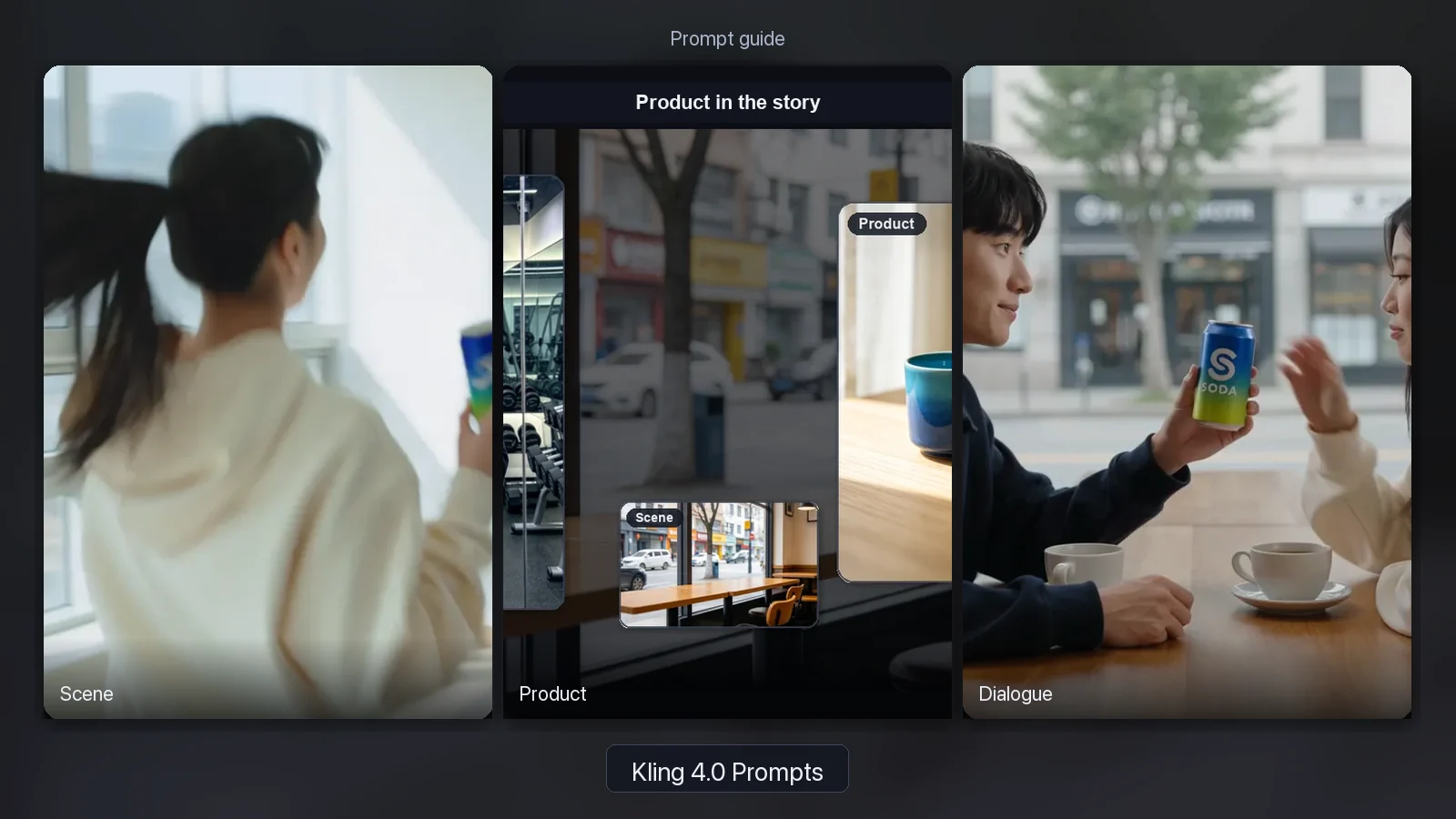
- Know when to switch models: if a project needs multiple reference images, first-and-last-frame transitions, or 15–30 second continuous sequences, switch to Kling 4.0 or Wan 3.0.
Ready to test your own prompt? Open the Veo 3.1 AI video generator to check live settings and credit quotes before submitting.